Setup Tab
The Setup tab is the first tab you see when you connect to your flight controller. It shows a live orientation preview, arming prevention flags and other flight controller information.
In Betaflight App 2026.6.1 and later, sensor calibration and alignment controls are in the Sensors tab. In App 2025.12.1 and Configurator 10.10.0, calibration controls were on Setup, while board and sensor alignment controls were on Configuration.
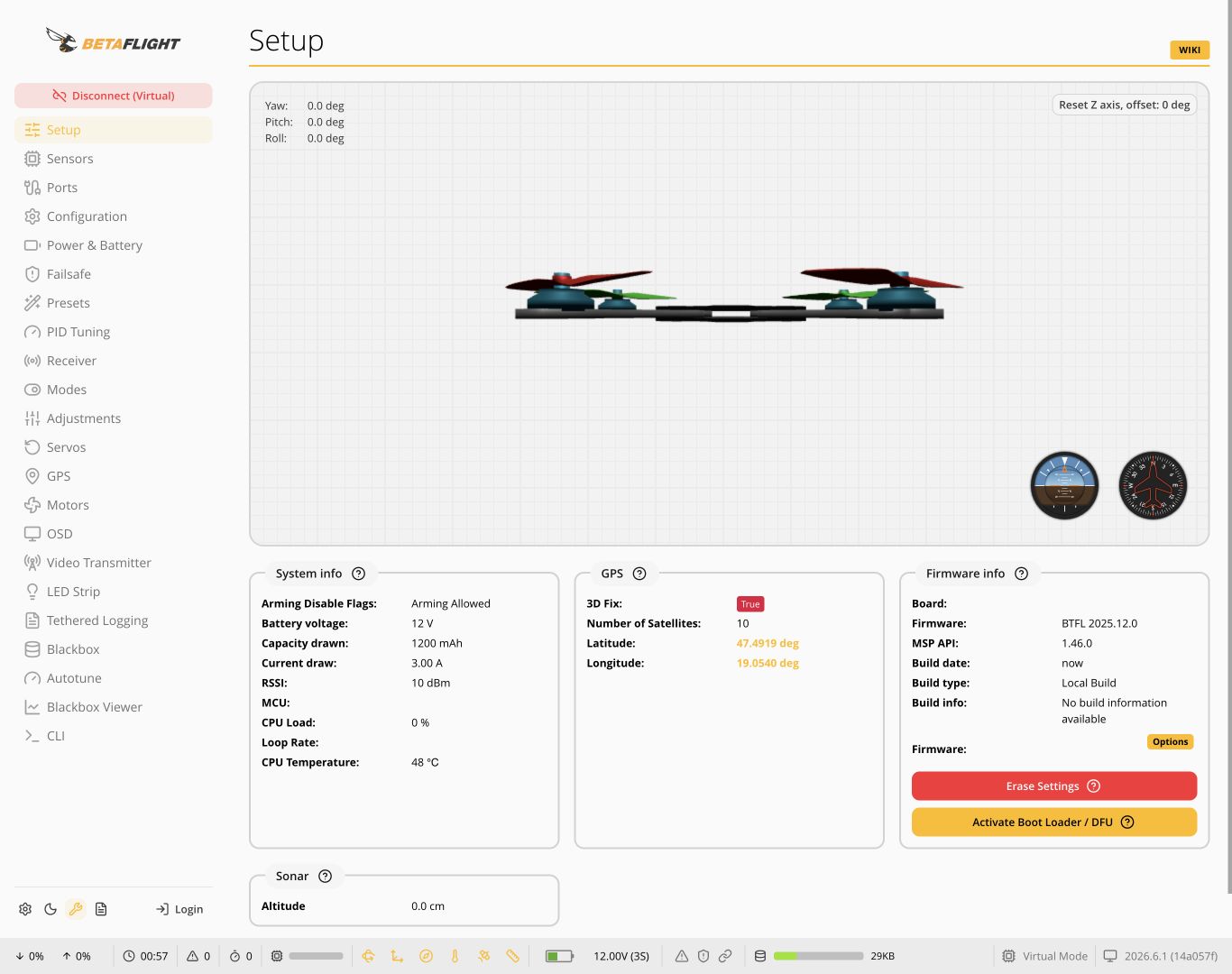
Screenshot from App 2026.6.1 using a virtual flight controller.
Basic Setup
Calibrate Accelerometer
In App 2026.6.1 and later, open the Sensors tab's Accelerometer section and use Calibrate. In App 2025.12.1 and Configurator 10.10.0, use the accelerometer calibration control on the Setup tab. Place the flight controller on a flat, level surface and keep it still during calibration.
The accelerometer is used for self stabilization features, like angle, horizon, acro trainer, and even GPS rescue. If you do not intend to use these features, you can skip this step, or even disable the accelerometer entirely
Calibrate Magnetometer
In App 2026.6.1 and later, open the Sensors tab's Magnetometer section for compass alignment and calibration. The available calibration modes depend on your firmware; follow the calibration instructions for the selected mode.
In App 2025.12.1 and Configurator 10.10.0, use the magnetometer calibration control on the Setup tab and configure compass alignment on the Configuration tab.
Reset Settings
This will reset ALL settings to default, leading to an empty config. This is not a "Factory Reset" for your drone or flight controller, nor will it reset your just-changed settings. It's to be used as a hard reset, and can lead to unpredictable results, or you may even need to re-flash in order to even be able to connect again
Enable Expert Mode to show the Erase Settings control in the firmware information panel.
Activate Bootloader/DFU
A manual way to put the flight controller into DFU (Device Firmware Update) mode without having to hold down the physical boot button. This is useful if you're having issues when flashing. Board will remain in DFU mode until cycled or a flash is completed
This control is also shown in the firmware information panel when Expert Mode is enabled.
FC Information
Live Gyro Preview
A live preview of the gyroscope data. This is useful to check if the gyroscope is aligned correctly, and if it isn't getting/giving noisy data
Set board alignment in the Sensors tab. For older firmware with separate sensor alignment controls, see Sensor Alignment (Legacy).
Info
Shows some basic data from the flight controller. This includes:
- Arming Disable Flags - Shows all of the "errors" that prevent the flight controller from arming. This is useful to check if you're having issues arming
- Battery Voltage - Shows the current battery voltage if the settings for it are set correctly
- Current Draw - Shows the current draw from the battery if the settings for it are set correctly
- mAh Used - Shows the mAh consumed from the battery if the settings for it are set correctly
- RSSI - Shows the current RSSI value (used as a rough estimate of the signal strength) if the settings for it are set correctly
GPS
Shows the GPS data if the flight controller has a GPS module connected and set up. This includes:
- 3D Fix - Shows if the GPS has a 3D fix or not, a fix is needed for proper GPS functionality
- Sats - Shows the current amount of satellites the GPS has a lock on. The more the better, usually 6 or more is needed for a good fix
- Latitude/Longitude - Shows the current lat/long coordinates of the drone
Instruments
A graphic replica of real aircraft instruments
Experimental Backup and Restore
The experimental backup and restore controls from older Configurator versions are not present on the Setup tab in App 2026.6.1 and later. Follow the configuration backup instructions before changing your settings or upgrading firmware.